
Troubleshooting Common Issues in CallGauge AI
Learn how to diagnose and resolve common issues with call tracking, attribution, AI processing, integrations and your CallGauge AI account.
Before You Start
Most issues can be resolved by checking your workspace configuration, tracking numbers, call flows, integrations and account settings. This guide covers the most common problems and the steps you can take before contacting support.
Tracking Issues
Resolve problems with tracking numbers, call flows and missing calls.
Attribution
Fix campaign attribution and Dynamic Number Insertion issues.
AI Features
Troubleshoot AI summaries, transcripts and call intelligence.
Account & Integrations
Resolve billing, workspace and integration connection problems.
Still Need Help?
If the issue continues after completing these troubleshooting steps, contact the CallGauge AI support team for additional assistance.
Calls Aren't Appearing
If inbound calls are not appearing in your Call Logs, first verify that your tracking number is active, assigned to the correct workspace and connected to a call flow. Most missing call issues are caused by an incomplete tracking number configuration.
Check Tracking Number
Verify that your tracking number is active and assigned to the correct workspace.
Verify Call Flow
Make sure the tracking number is attached to an active call flow.
Review Workspace
Confirm that you're viewing the correct workspace where calls are being received.
Place a Test Call
Make a test call to confirm the number is routing correctly and generating a call record.
Most Common Cause
Calls usually don't appear because the tracking number hasn't been attached to a call flow or you're viewing a different workspace.
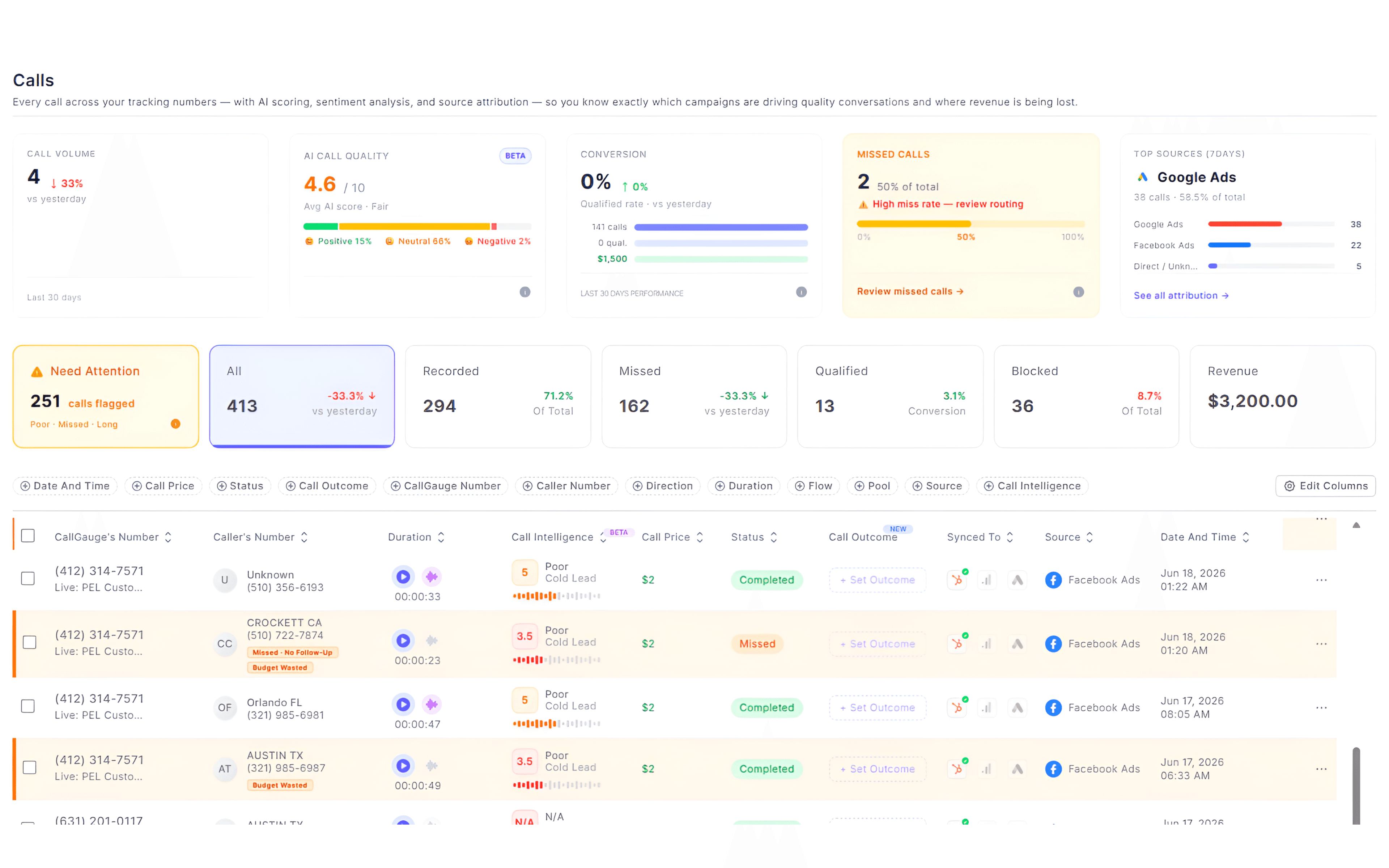
Expected Result
Your inbound calls are now appearing correctly in the Call Logs.
Attribution Issues
If calls are not being attributed to the correct campaign, keyword or marketing source, review your Dynamic Number Insertion (DNI) setup, tracking pool and website installation.
Review Your Tracking Setup
Attribution depends on a correctly configured tracking pool and website installation. If either is missing, marketing source information may not be available.
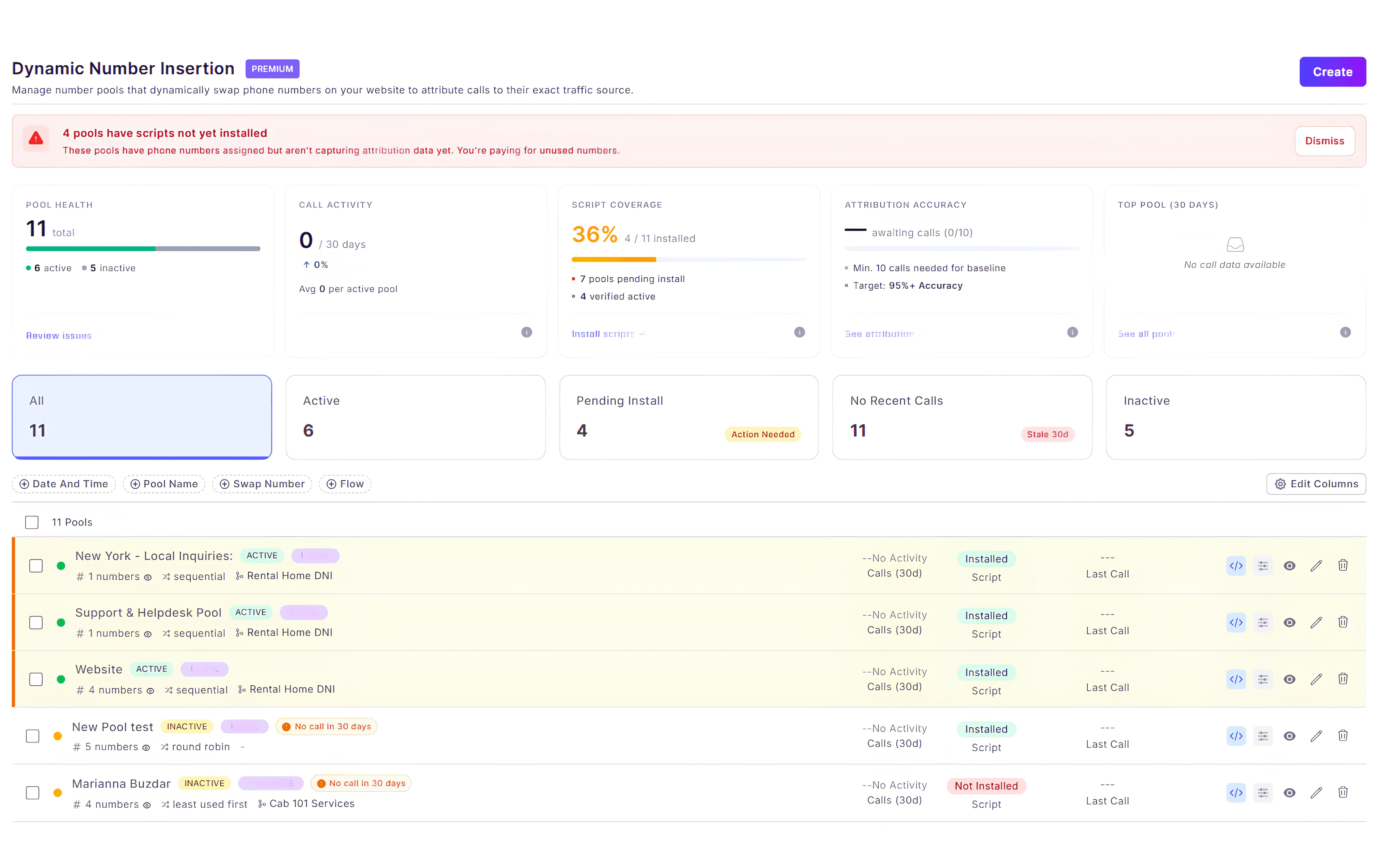
Expected Result
Calls are now being attributed to the correct marketing source.
AI Processing Issues
If AI summaries, transcripts or Call Intelligence are unavailable, the call may still be processing or a recording may not be available. Most AI insights become available shortly after a call has completed.
Wait for Processing
Recently completed calls may require additional time before AI analysis is finished.
Check Call Recording
Verify that the call was successfully recorded before expecting AI analysis.
Review Call Duration
Very short calls may not generate summaries or detailed AI insights.
Refresh the Call
Refresh the Call Details page after processing has completed.
AI Processing
AI summaries, transcripts, sentiment and call intelligence are generated after the recording has been processed successfully.
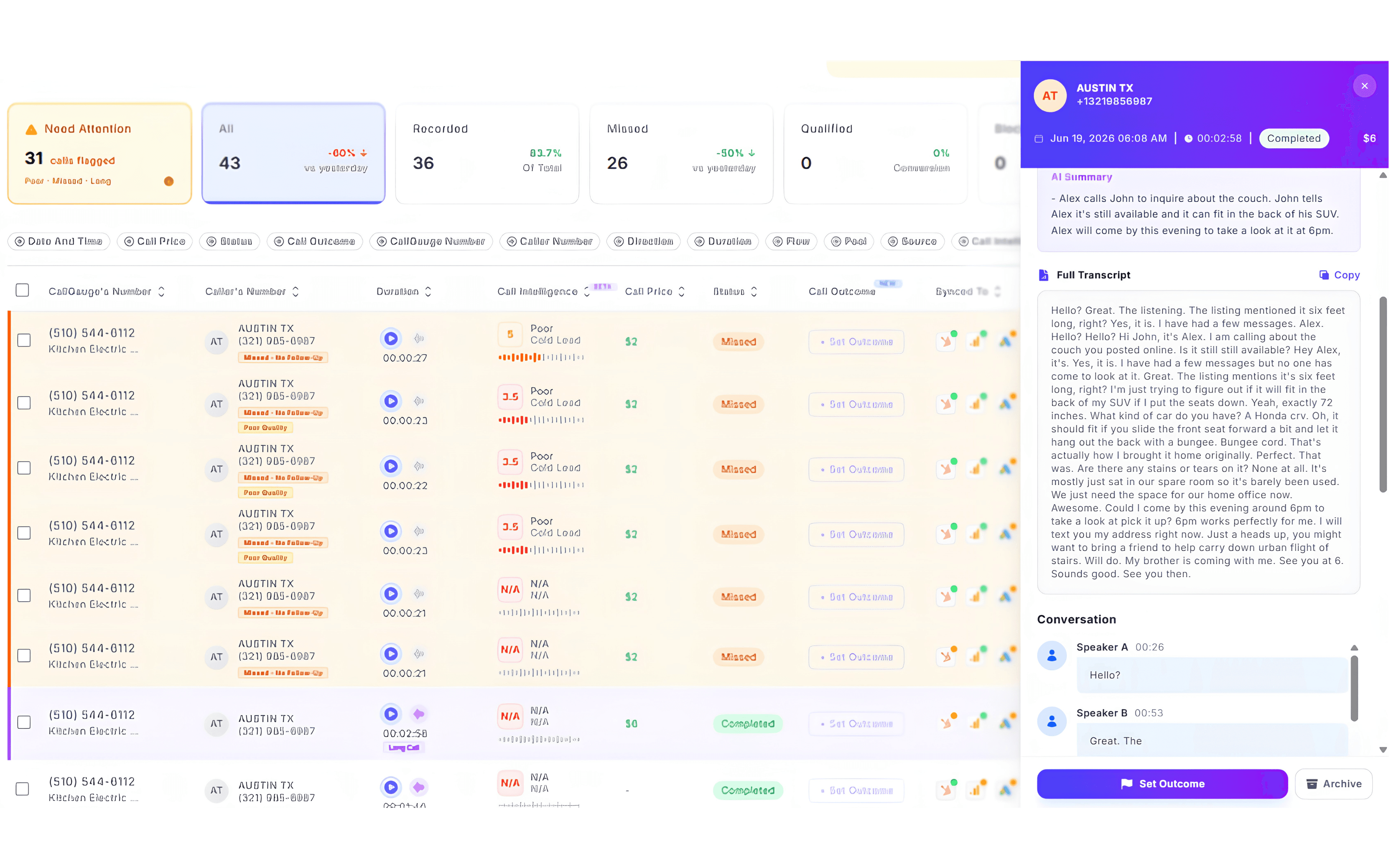
Expected Result
AI summaries, transcripts and Call Intelligence are now available.
Integration Problems
If your integrations are not syncing correctly, review the connection status, account permissions and synchronization settings. Most integration issues can be resolved by reconnecting the affected service or verifying the selected account.
Connection Status
Confirm the integration is connected and shows an active status.
Account Permissions
Verify that the connected account still has the required permissions.
Reconnect Integration
Disconnect and reconnect the integration if authorization has expired.
Recent Sync Activity
Review the latest synchronization time and any reported errors.
Check Before Reconnecting
Before reconnecting an integration, verify that the correct account, property or workspace has been selected. This helps prevent duplicate connections or missing data.
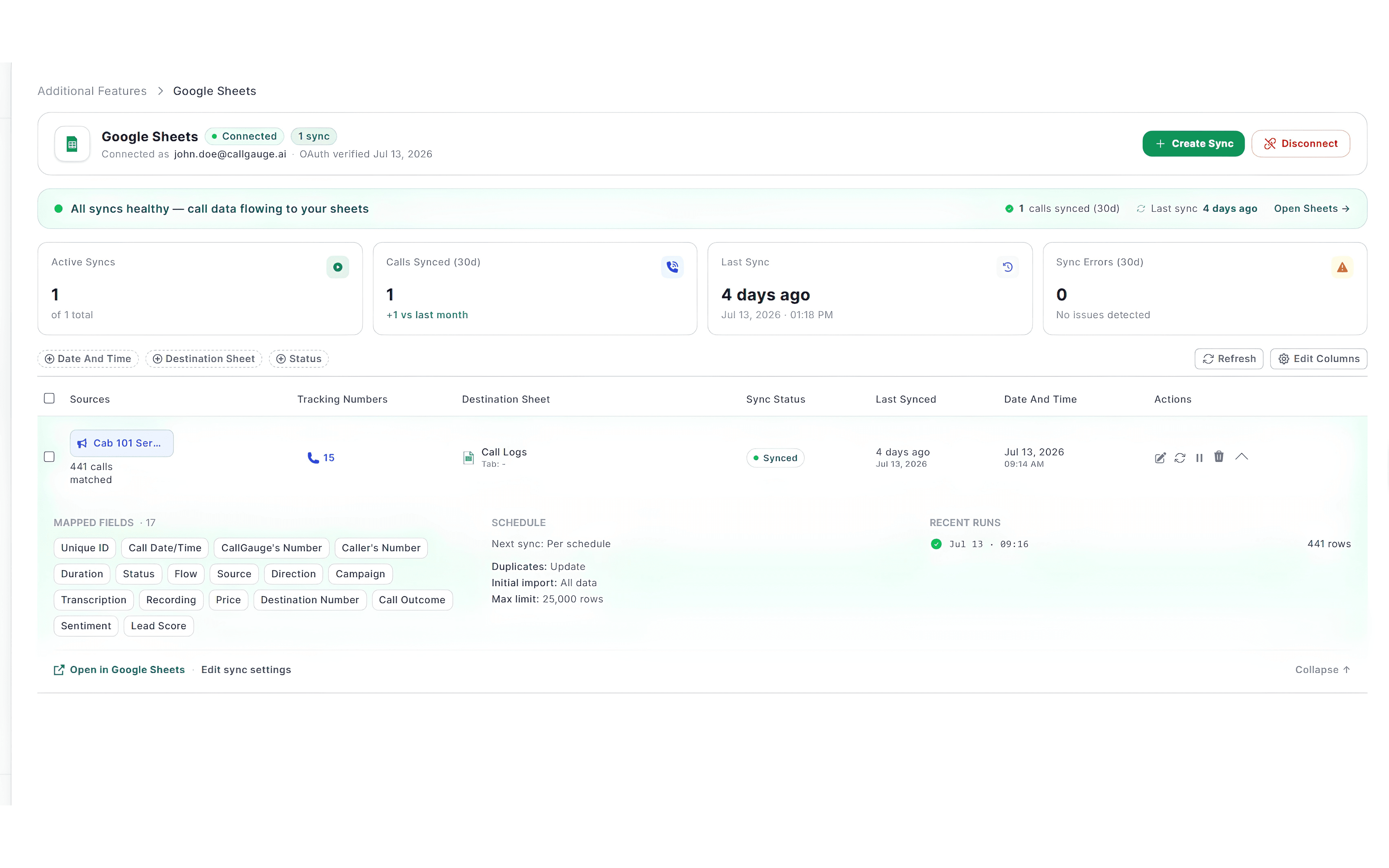
Expected Result
Your integrations are connected successfully and data is syncing normally.
Billing & Account Issues
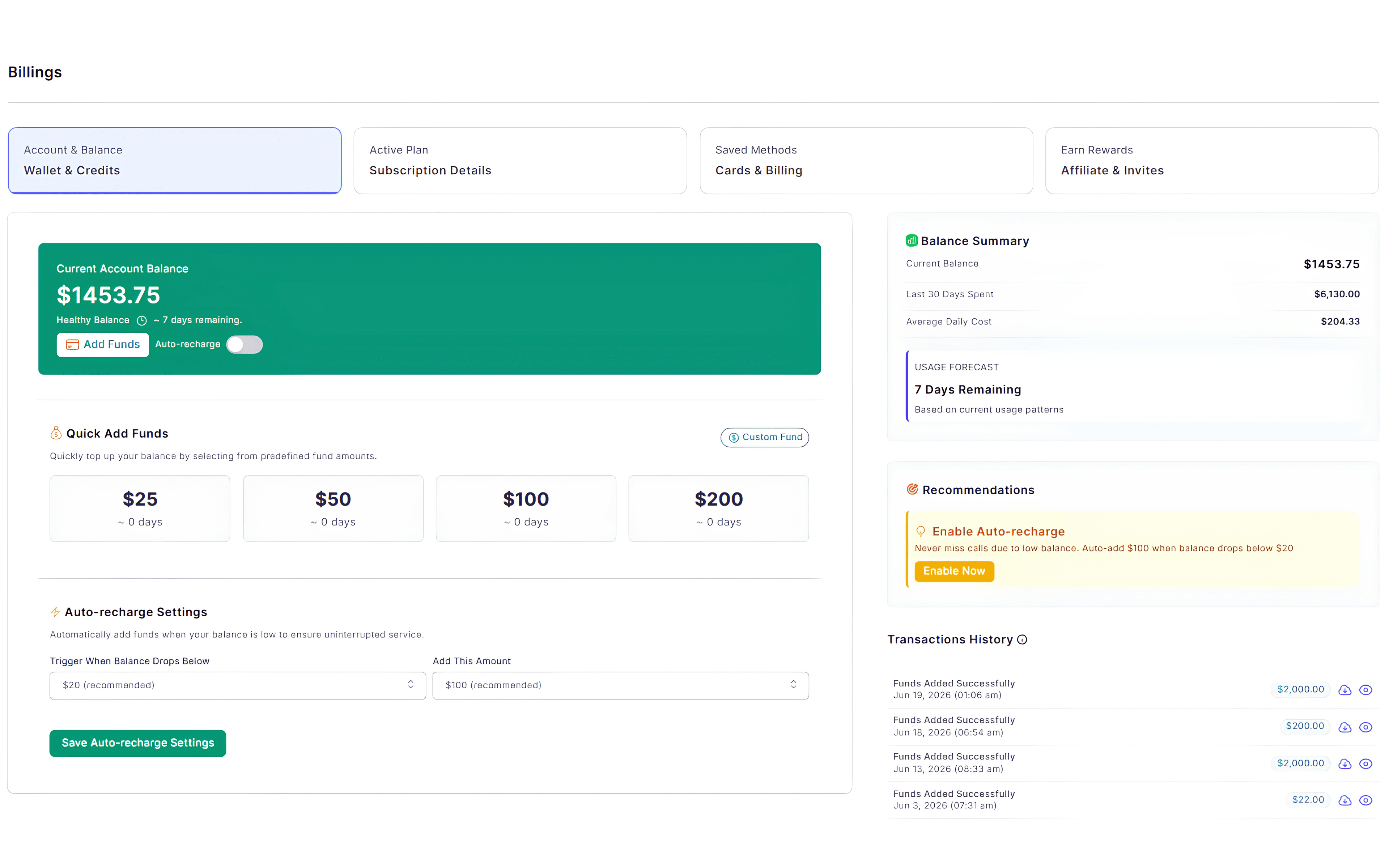
If you're experiencing account or billing issues, review your wallet balance, subscription status and workspace permissions. Keeping your account information up to date helps prevent interruptions to your CallGauge AI services.
Avoid Service Interruptions
A low wallet balance, inactive subscription or insufficient workspace permissions may prevent certain features from working as expected.
Expected Result
Your account is active, billing is up to date and your workspace is ready to use.
Next Steps
Troubleshooting Complete
You now know how to troubleshoot common issues with call tracking, attribution, AI features, integrations and your CallGauge AI account.
Recommended Next Guides
Still need help?
Contact our support team at support@callgauge.ai if you continue to experience issues after following this guide. Please include any relevant screenshots or error messages so we can assist you more quickly.
Contact Our Support Team
Get help with your CallGauge AI account, product setup, integrations or technical questions.