
Integrations in CallGauge AI
Learn how to connect Google Sheets, Google Ads, Google Analytics, Facebook Meta Ads and HubSpot CRM to sync call data, conversions and customer activity.
Connect Your Marketing and CRM Platforms
CallGauge AI connects with the platforms your team already uses. These integrations can send call data to spreadsheets, associate calls with advertising campaigns, pass call events to analytics platforms and keep CRM records updated with customer activity.
Marketing Platforms
Connect Google Ads and Facebook Meta Ads to associate calls and conversions with campaign activity.
Google Analytics
Send call events to Google Analytics 4 and review the customer journey from website activity to phone calls.
Google Sheets
Automatically sync call records to a spreadsheet for reporting, analysis and team collaboration.
HubSpot CRM
Sync contacts, log call activity, associate calls with deals and retain source attribution in HubSpot.
Available Connections
CallGauge AI currently supports Google Sheets, Google Ads, Google Analytics, Facebook Meta Ads and HubSpot CRM. Availability, pricing and included features may differ between integrations.
Browse Available Integrations
Open the Integrations page to explore all available connections. Each integration displays its current status, pricing, included features and available actions, making it easy to choose the services that fit your workflow.
Marketing Platforms
Connect Google Ads and Facebook Meta Ads to associate phone calls with advertising campaigns.
Analytics
Connect Google Analytics 4 to send call events and conversion data.
Google Sheets
Automatically export call data into spreadsheets for reporting and team collaboration.
HubSpot CRM
Sync contacts, call activities and deal attribution directly into HubSpot.
Choose the Right Integration
Every integration includes its own features and setup process. Review the available integrations before connecting the platforms your business uses.
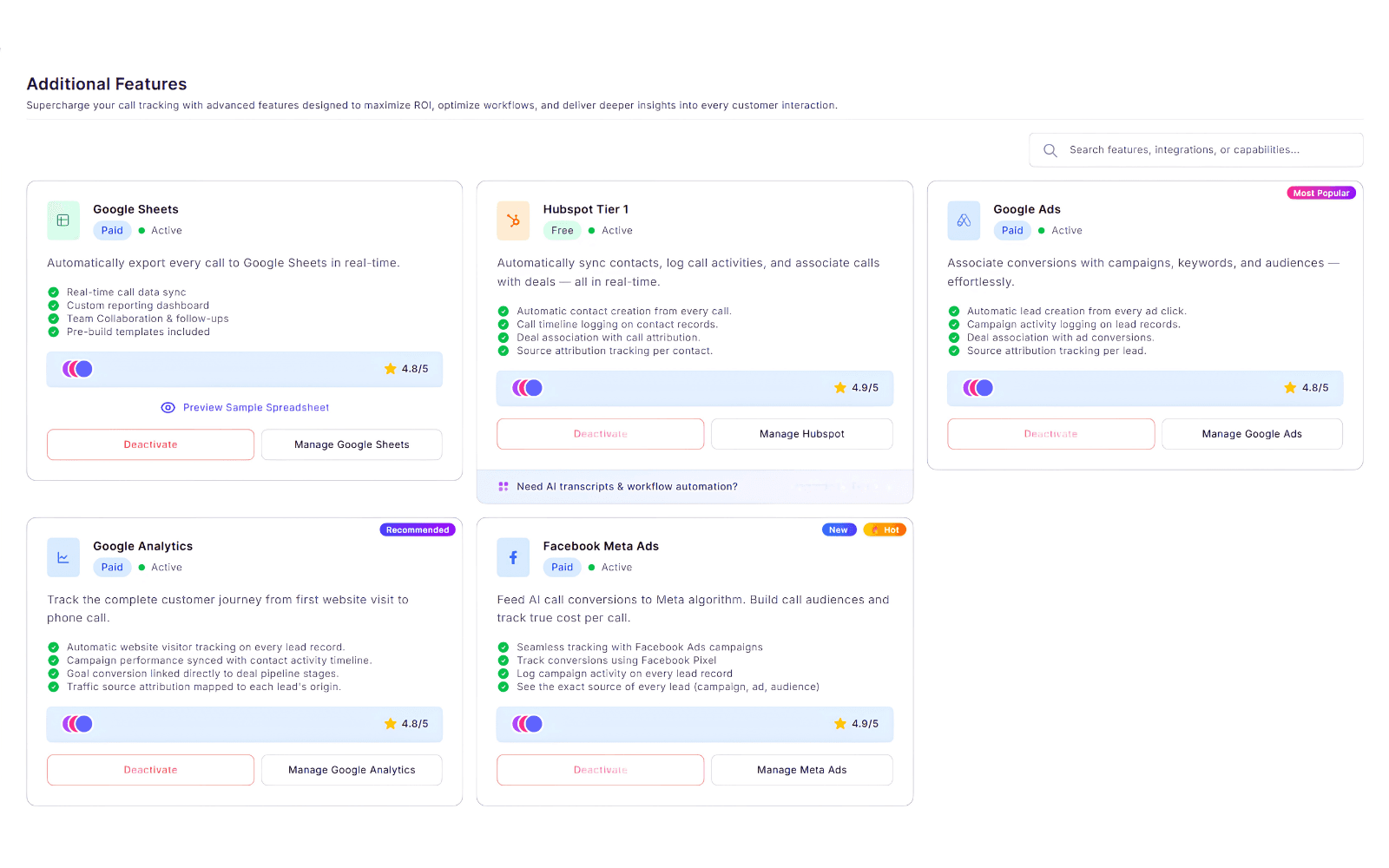
Expected Result
You can review available integrations and select the ones you want to connect.
Connect an Integration
Select an integration and follow the setup process to connect your account. Depending on the platform, you may be asked to sign in, authorize CallGauge AI and configure the initial connection before data begins syncing.
Complete the Setup
Each integration includes a guided setup experience. Once connected, CallGauge AI verifies the connection and begins syncing supported data with your selected platform.
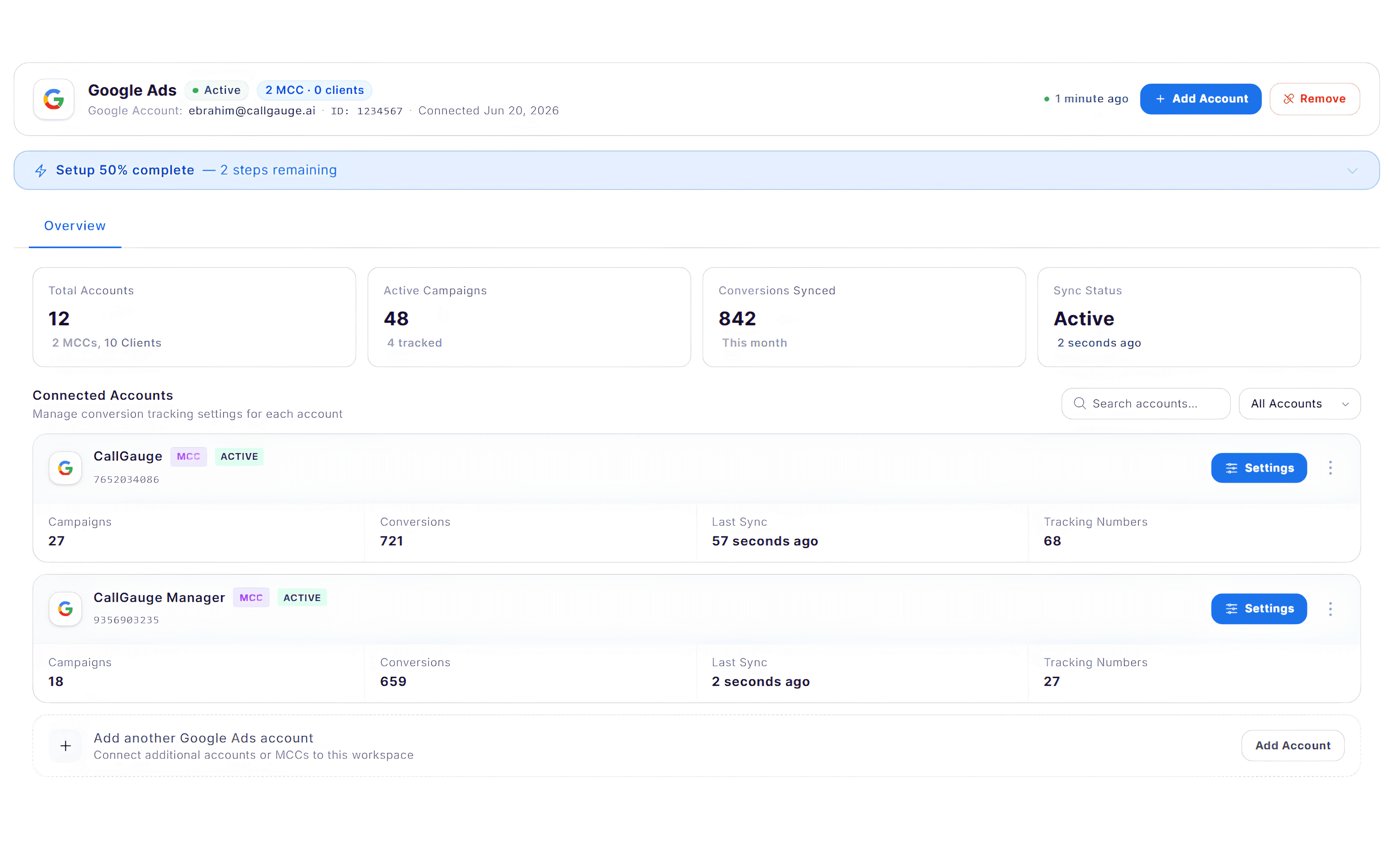
Expected Result
Your integration is connected and ready to sync supported data.
Manage Integration Settings
After connecting an integration, you can manage its settings, update the connection, configure available options and monitor its status from the integration dashboard.
Edit Connection
Update connection details or reconnect your account if required.
Configure Settings
Adjust integration-specific settings and synchronization preferences.
Test Connection
Verify that data is flowing correctly between CallGauge AI and the connected platform.
Connected Accounts
View and manage the accounts or properties linked to the integration.
Review Your Configuration
Regularly review your integration settings to ensure the correct accounts, properties and synchronization options are configured for your business.
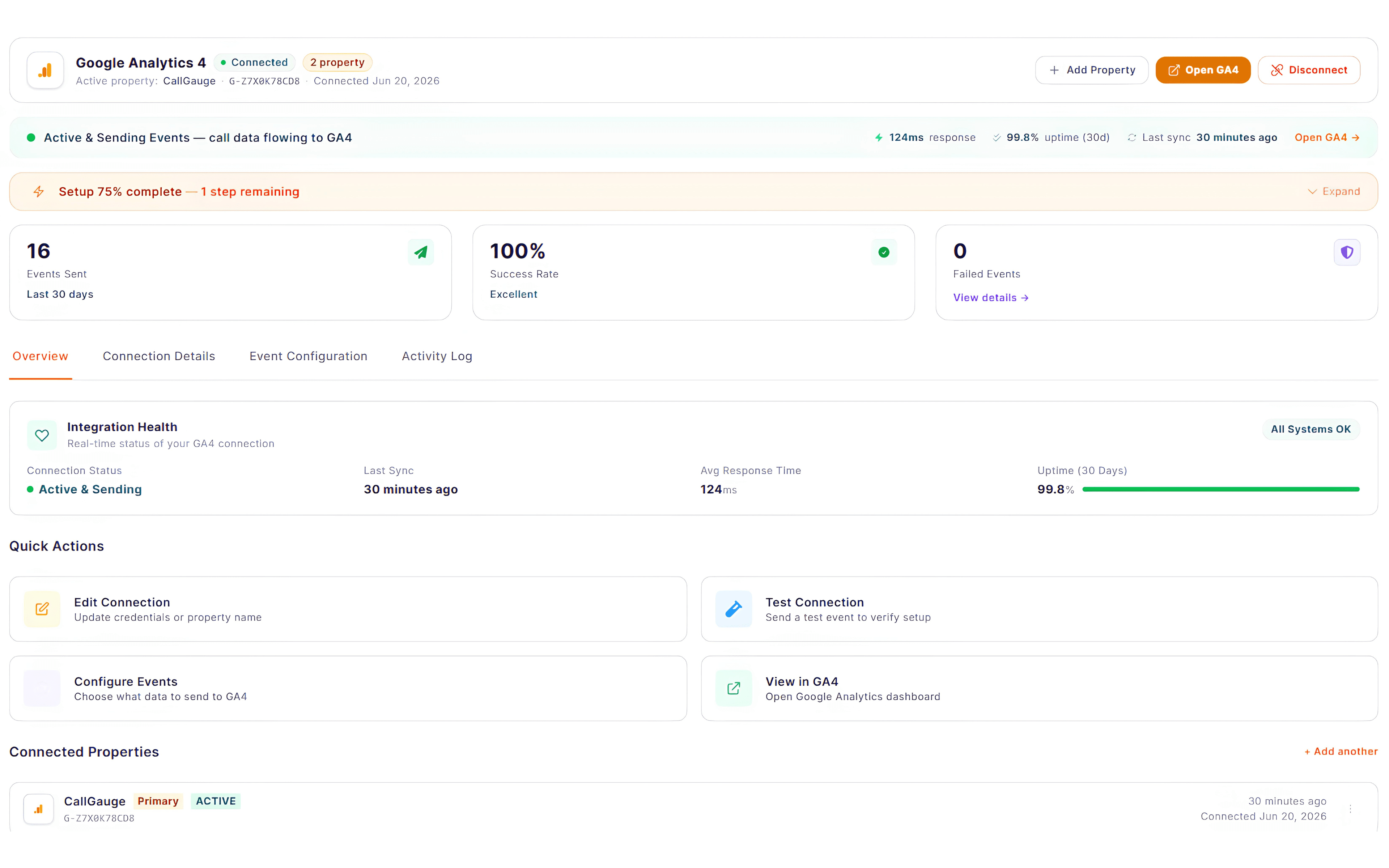
Expected Result
Your integration is configured and ready to synchronize data with CallGauge AI.
Connect and Manage HubSpot CRM
Connect HubSpot to automatically sync customer and call activity with your CRM. Once connected, CallGauge AI can create contacts, log calls, associate calls with deals and retain source attribution on customer records.
Contact Auto-Sync
Create or update HubSpot contacts using caller information from CallGauge AI.
Activity Logging
Record call activity on the relevant HubSpot contact timeline.
Deal Association
Associate calls and attribution information with related HubSpot deals.
Source Attribution
Retain the marketing source associated with each synced contact.
Review Your HubSpot Tier
HubSpot features may vary by integration tier. Review the active features and setup status on the HubSpot dashboard before configuring additional options.
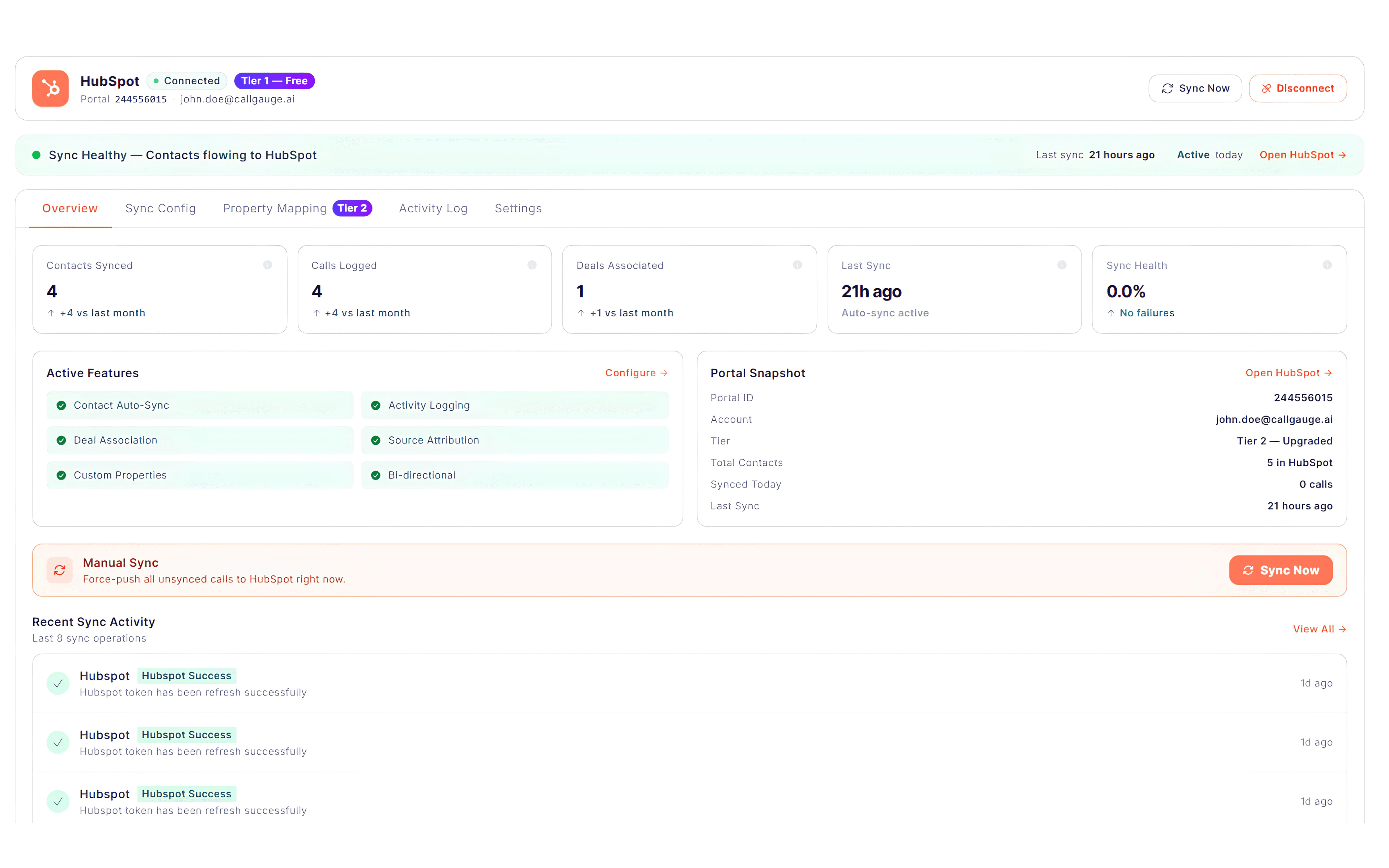
Expected Result
HubSpot can now receive supported contact, call activity, deal and attribution data from CallGauge AI.
Monitor Integration Health
Review each connected integration regularly to confirm that data is syncing correctly. Integration dashboards display connection status, recent sync activity, successful events and any errors that may require attention.
Resolve Issues Promptly
If an integration shows an error, pending setup or an outdated sync time, review its configuration and reconnect the account if required. Some platforms may also require additional event, conversion or property settings before data can flow.
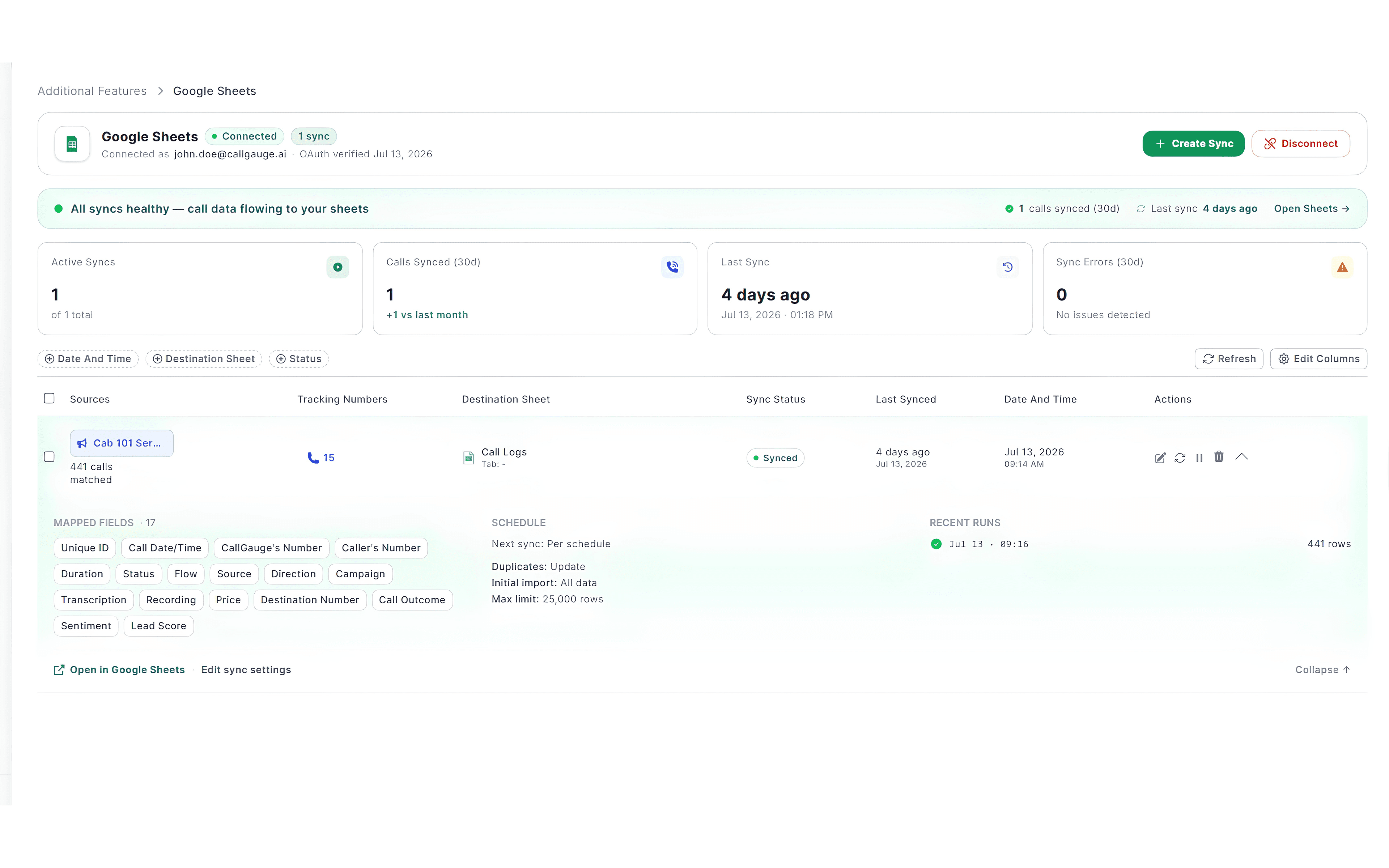
Expected Result
Your connected integrations are active and syncing supported data successfully.
Next Steps
Your Integrations Are Ready
You now know how to browse available integrations, connect your accounts, manage integration settings, configure HubSpot CRM and monitor synchronization health.
Recommended Next Guides
Need help with an integration?
Contact our support team at support@callgauge.ai if you need assistance connecting an account, completing setup or resolving a synchronization issue.
Contact Our Support Team
Get help with your CallGauge AI account, product setup, integrations or technical questions.