
Call Flows & Routing in CallGauge AI
Learn how to create call flows, route inbound calls to the right destination and configure routing options for your business.
How Call Flows Work
Call flows define what happens when someone calls your tracking number. They determine where calls are routed and can include features such as business hours, greetings, multi-ringing and voicemail.
Create Call Flow
Create a routing flow for your tracking numbers.
Destination Numbers
Choose where incoming calls should ring.
Routing Rules
Control how calls are handled.
Call Experience
Configure greetings, schedules and voicemail.
Before You Begin
Purchase a tracking number before creating a call flow. Every tracking number should have an active call flow attached.
Create a Call Flow
Navigate to the Call Flows section and create a new call flow. Give it a descriptive name so it is easy to identify later.
Good to Know
A call flow controls how incoming calls are handled. After creating it, you can add destination numbers, routing rules and other call handling options before attaching it to a tracking number.
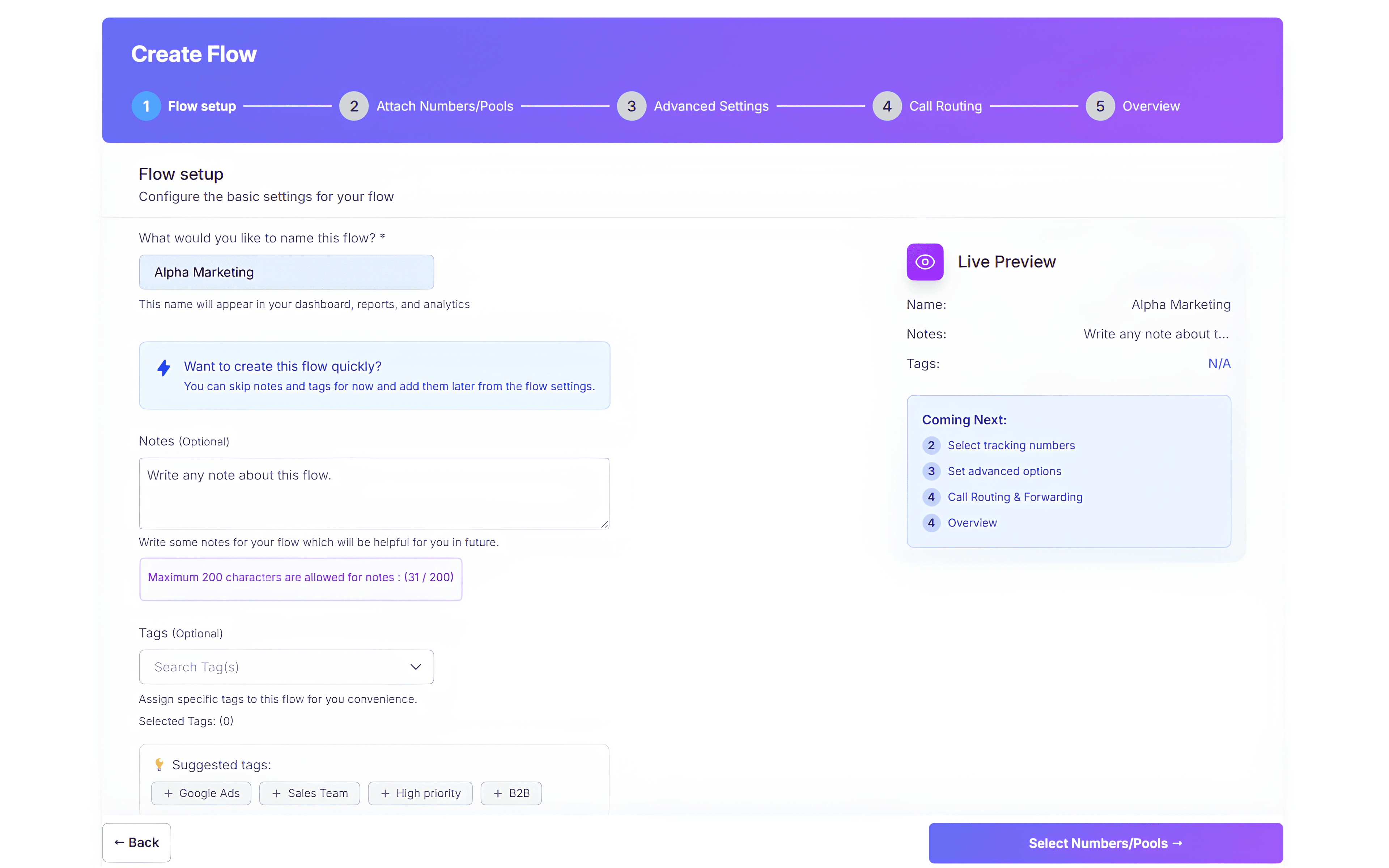
Expected Result
A new call flow has been created.
Add Destination Numbers
Add the phone number where incoming calls should be forwarded. This can be a business line, mobile phone or another supported destination.
Choose the Right Destination
The destination number is where CallGauge AI forwards incoming calls. Make sure the phone number is active and that your team is available to answer calls during business hours.
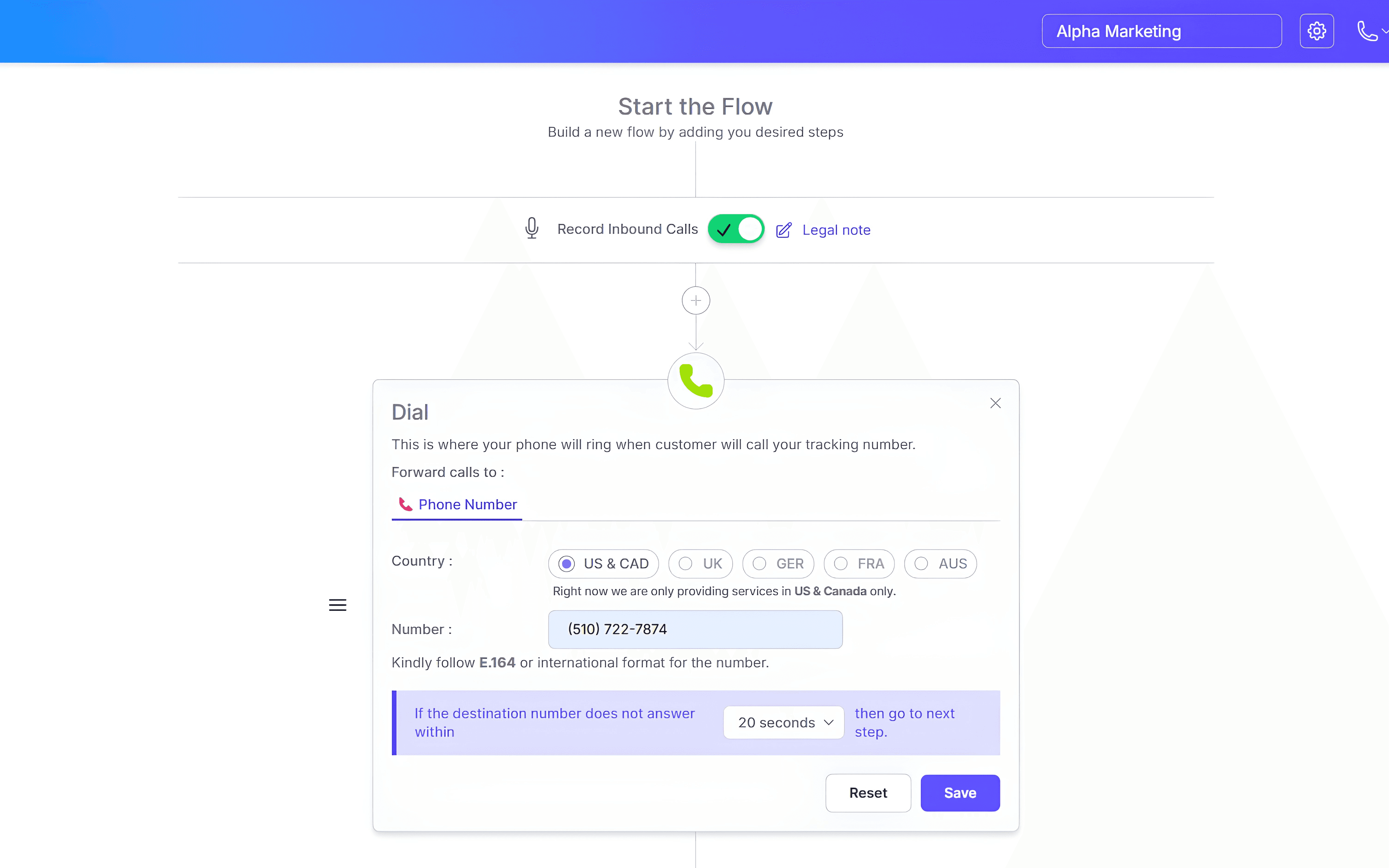
Expected Result
Incoming calls will ring the configured destination number.
Configure Routing Rules
Choose how calls should be routed based on your business requirements.
Business Hours
Route calls differently during business hours and after hours.
Call Forwarding
Send incoming calls to the appropriate person, team or department.
Multi-Ringing
Ring multiple destination numbers at the same time so the first available team member can answer.
After-Hours Routing
Redirect calls to voicemail or another destination when your business is closed.
Routing Best Practice
Configure your routing rules before attaching the call flow to a tracking number. Testing the routing path ensures calls always reach the correct destination.
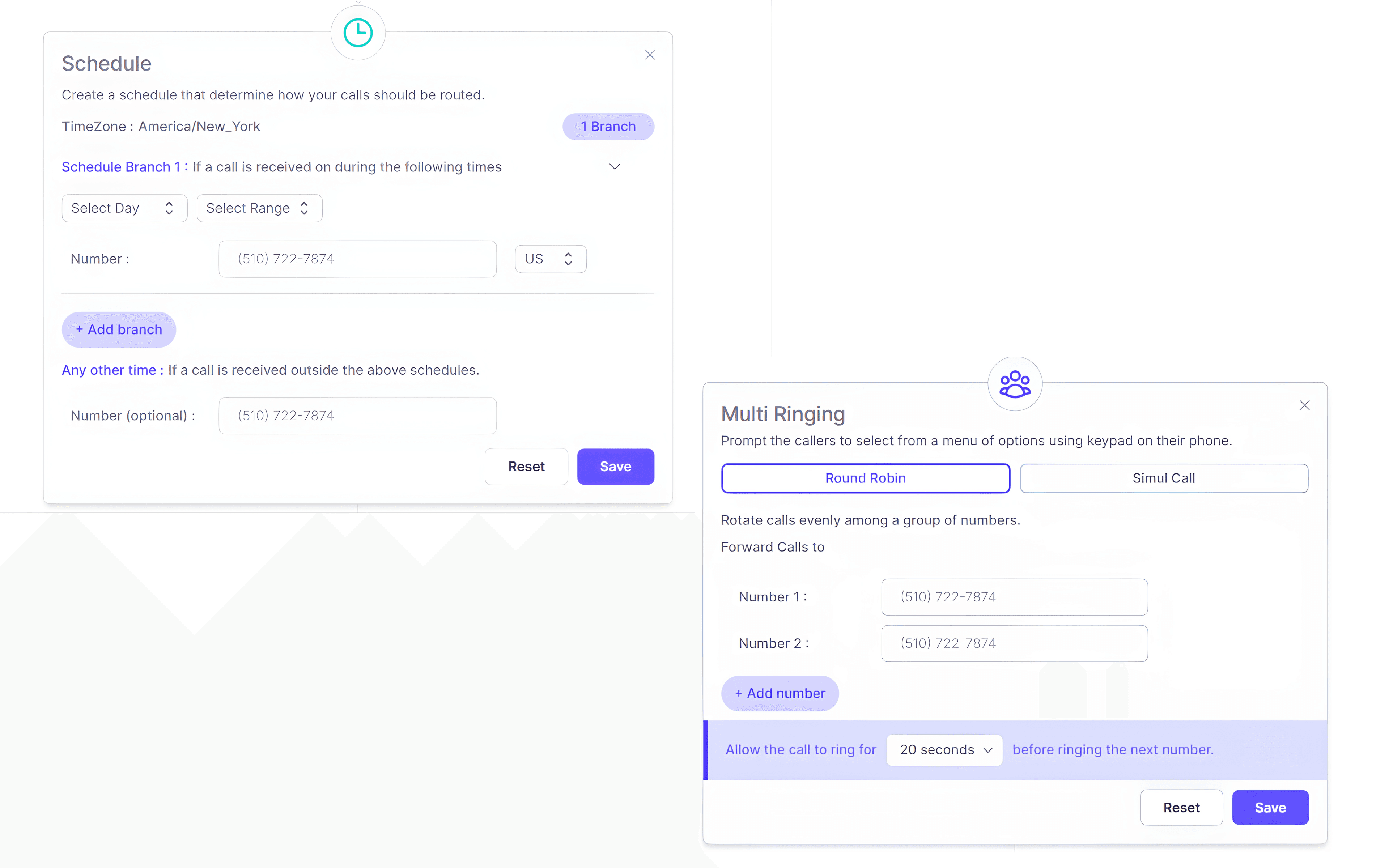
Expected Result
Your routing rules are configured.
Configure Call Experience
Improve the caller experience by configuring greetings, voicemail and other available routing options.
Create a Better Caller Experience
Configure greetings, business hours and voicemail before activating your call flow. This helps callers reach the right destination and provides a consistent experience when your team is unavailable.
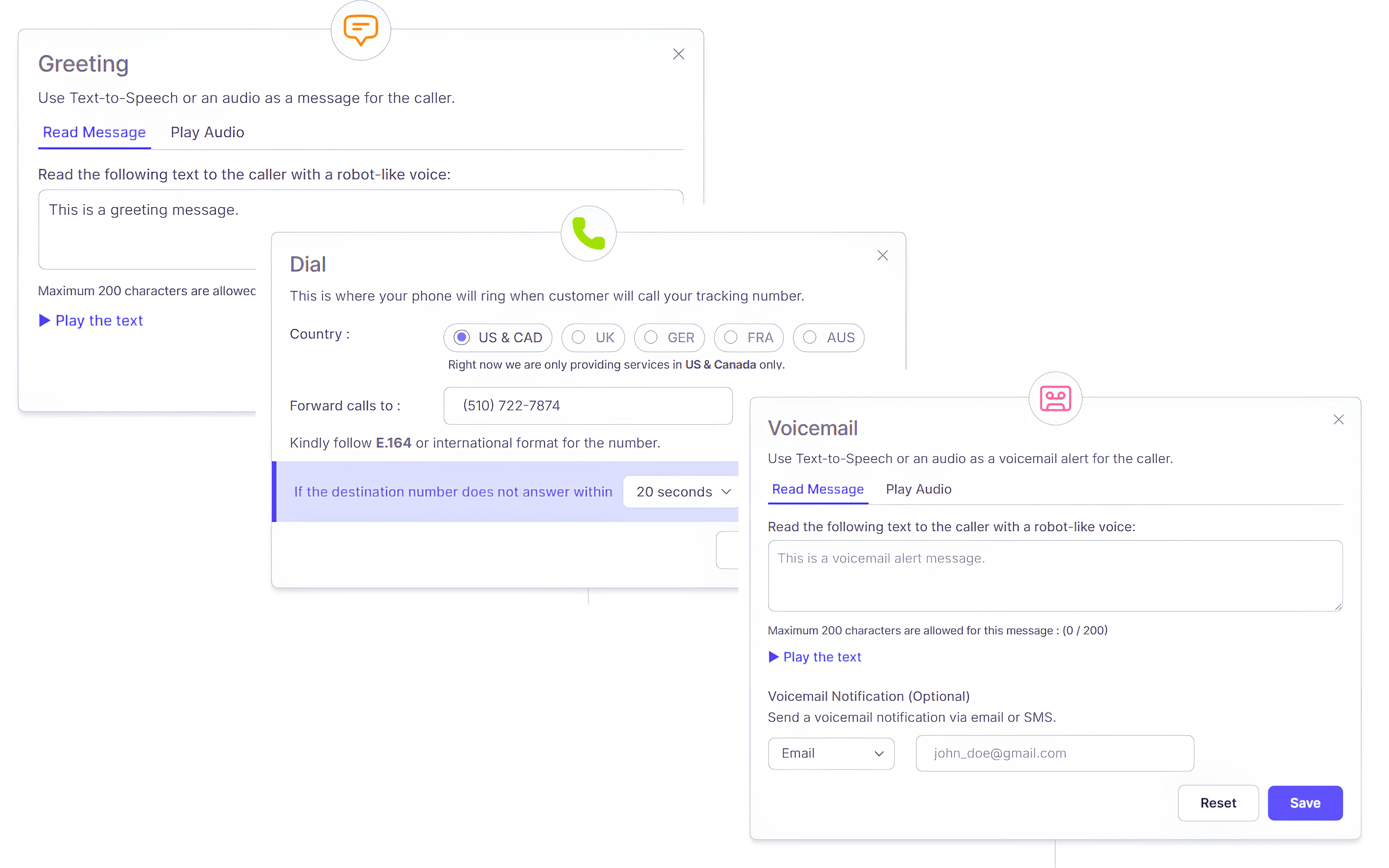
Expected Result
Your callers receive the experience you configured.
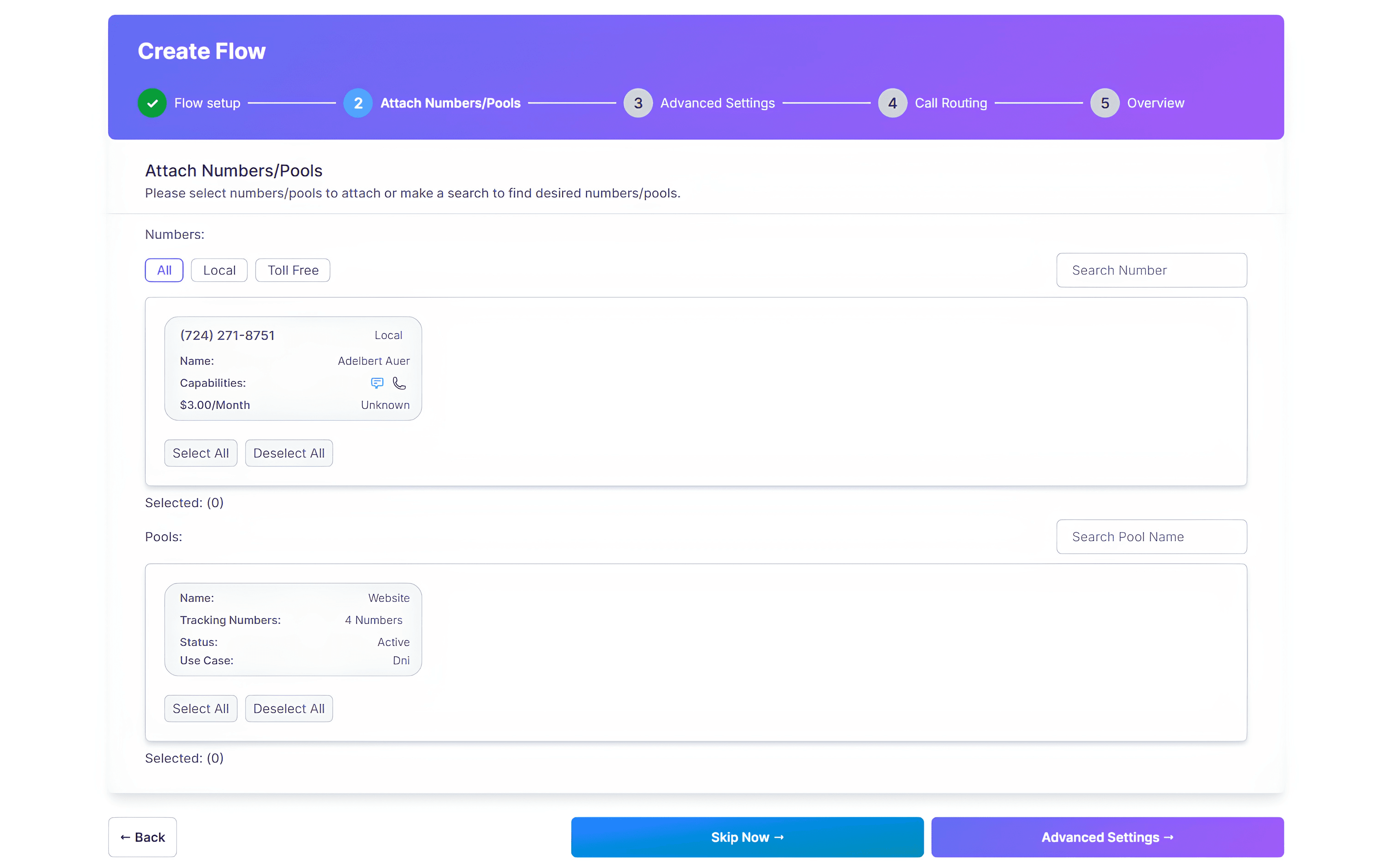
Attach the Call Flow
Assign the completed call flow to a tracking number or number pool. Calls received on that number will now follow the configured routing rules.
Check Before Saving
Make sure you are assigning the correct call flow to the intended tracking number or number pool. Review the destination number and routing settings before saving to avoid sending calls to the wrong team or location.
Expected Result
The tracking number is connected to an active call flow.
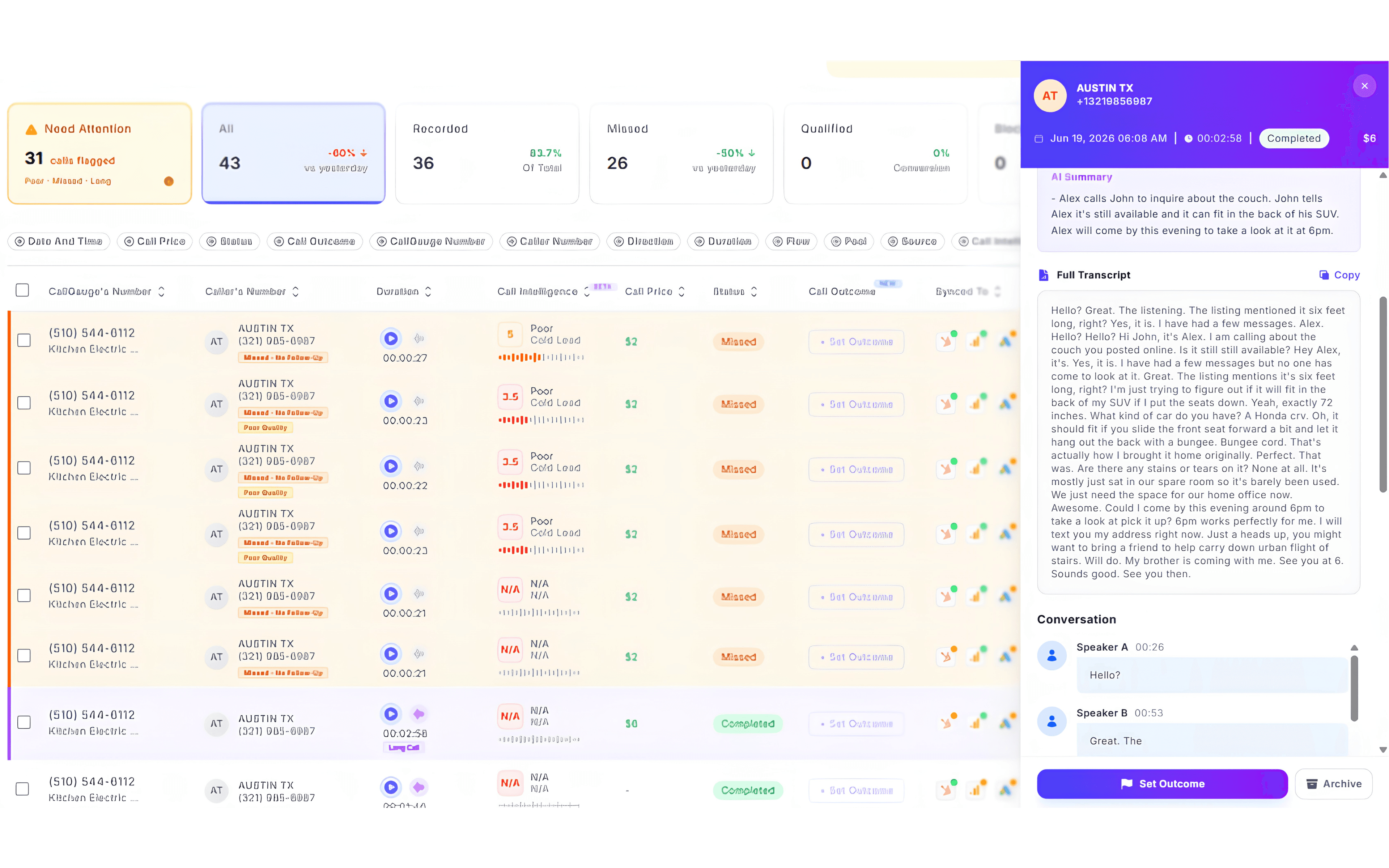
Test the Call Flow
Place a test call to confirm that calls follow the expected routing path.
Verify Before Going Live
Place at least one test call after attaching the call flow. Confirm that the call is routed to the correct destination and appears in the Call Log before using the tracking number for live campaigns.
Expected Result
Your call flow is routing inbound calls correctly.
Next Steps
Your Initial Setup Is Complete
Your account and workspace are active, your tracking number or number pool is available, and the attached call flow can route incoming calls.
Recommended Next Guides
Need help with setup?
Contact our support team at support@callgauge.ai.
Contact Our Support Team
Get help with your CallGauge AI account, product setup, integrations or technical questions.