
Connect CallGauge AI with HubSpot
Connect CallGauge AI with HubSpot to synchronize call activity, contacts, form submissions, AI conversation insights, attribution data and deal associations with your CRM.
Keep Call and Customer Data Connected
The CallGauge AI HubSpot integration helps your team keep inbound call activity and customer information connected with your CRM. Once connected, supported call and attribution data can be synchronized with HubSpot automatically according to your integration settings.
Call Activity
Log supported inbound call activity in HubSpot so your team can review customer conversations alongside CRM records.
Contacts
Create or update HubSpot contacts using supported caller information from CallGauge AI.
AI Conversation Data
Map supported AI summaries, transcripts and sentiment data to HubSpot properties.
Attribution
Keep supported marketing source and attribution information connected with synced customer records.
Deal Associations
Associate supported call activity with relevant HubSpot deals when deal association is enabled.
Form Submissions
Send supported form submission activity from CallGauge AI to HubSpot as part of your connected customer workflow.
Configuration Controls What Syncs
Available synchronization behavior depends on the options you enable in your HubSpot integration settings and the data available for each interaction.
Before You Begin
Before connecting HubSpot, make sure you can sign in to both CallGauge AI and the HubSpot account you want to connect.
Choose the Correct HubSpot Account
If your HubSpot user has access to more than one account, verify the correct account before completing authorization.
Connect HubSpot
Connect HubSpot from your CallGauge AI account using the secure HubSpot authorization flow.
Sign in to your CallGauge AI account.
Open the HubSpot integration from the integrations area in CallGauge AI.
Activate the HubSpot integration from CallGauge AI account.
Sign in to HubSpot if prompted and select the HubSpot account you want to connect.
Review the permissions requested by CallGauge AI and approve the connection.
Return to CallGauge AI and confirm that the integration shows a connected status.
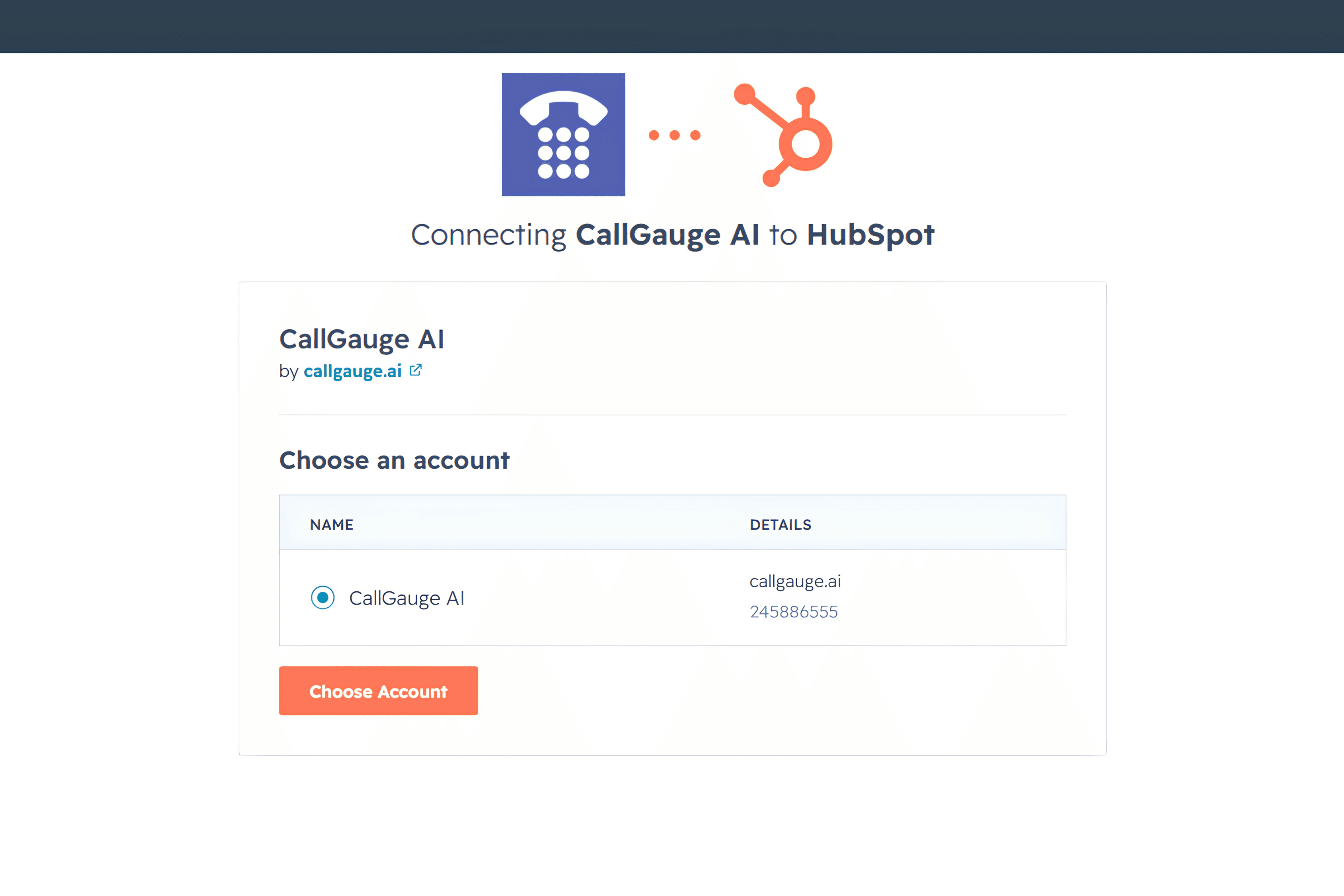
Expected Result
HubSpot displays as connected in CallGauge AI and the integration is ready to configure.
Configure Sync Settings
After connecting HubSpot, review the synchronization settings and choose how CallGauge AI should send supported customer and call activity to your CRM.
Automatic Sync
Enable automatic synchronization for supported CallGauge AI activity.
Create New Contacts
Allow CallGauge AI to create HubSpot contacts when a matching contact is not available.
Activity Logging
Log supported call activity against the relevant HubSpot contact.
Deal Association
Associate supported calls with HubSpot deals when this option is enabled.
Source Attribution
Send supported marketing source information with synchronized CRM data.
Sync Preferences
Review available options and enable only the synchronization behavior your team needs.
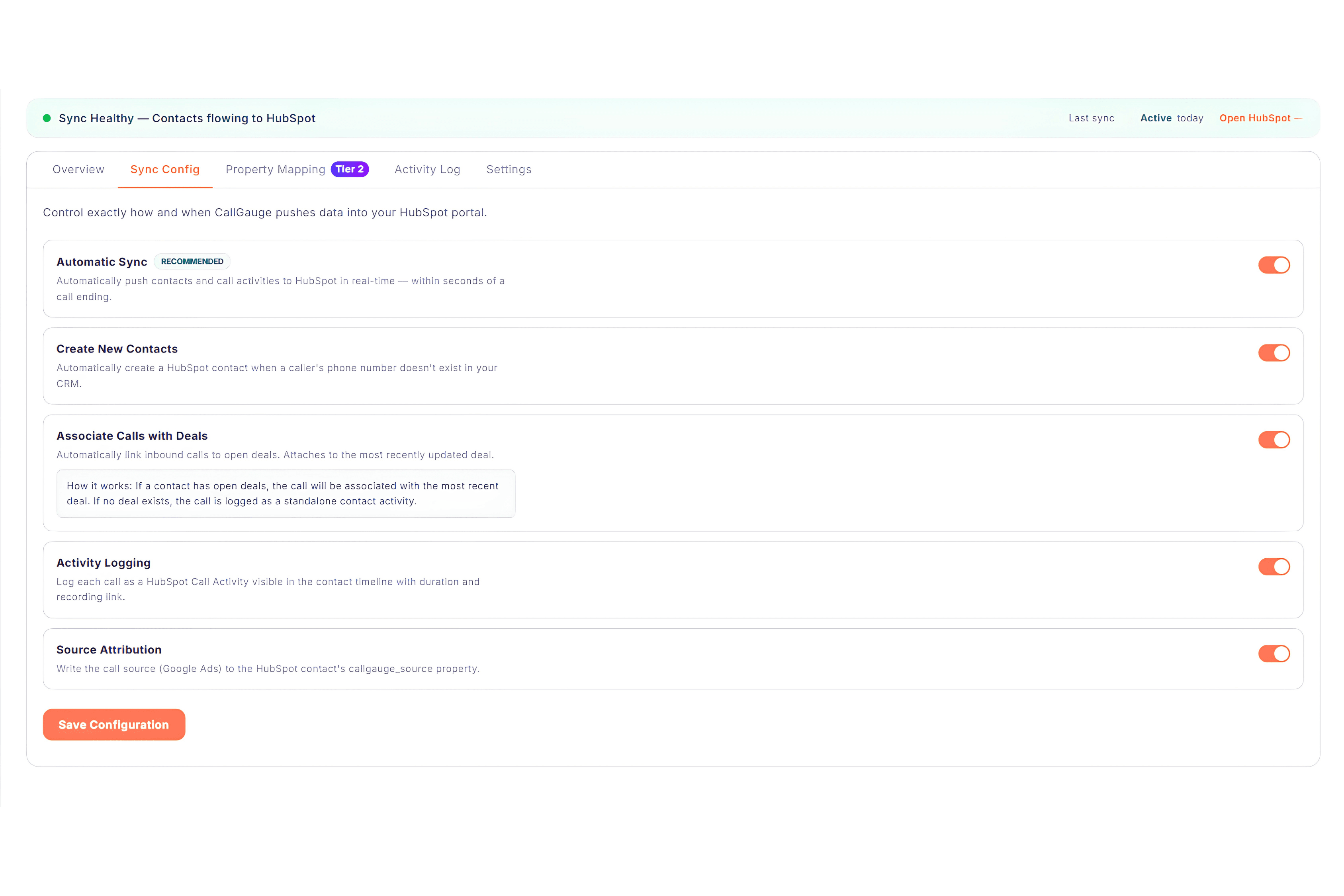
Expected Result
Your preferred HubSpot synchronization options are enabled and ready to process supported activity.
Configure Property Mapping
Property Mapping controls how supported CallGauge AI conversation data is mapped to HubSpot properties.
AI Summary
Map the AI-generated call summary to the appropriate HubSpot property.
Call Transcription
Map supported call transcription data to HubSpot.
Overall Sentiment
Store the overall conversation sentiment in the selected HubSpot property.
Sentiment Score
Map the supported sentiment score generated for the conversation.
Sentiment Confidence
Store supported sentiment confidence information in HubSpot.
Historical Data
Use available backfill options when you need to synchronize supported historical information.
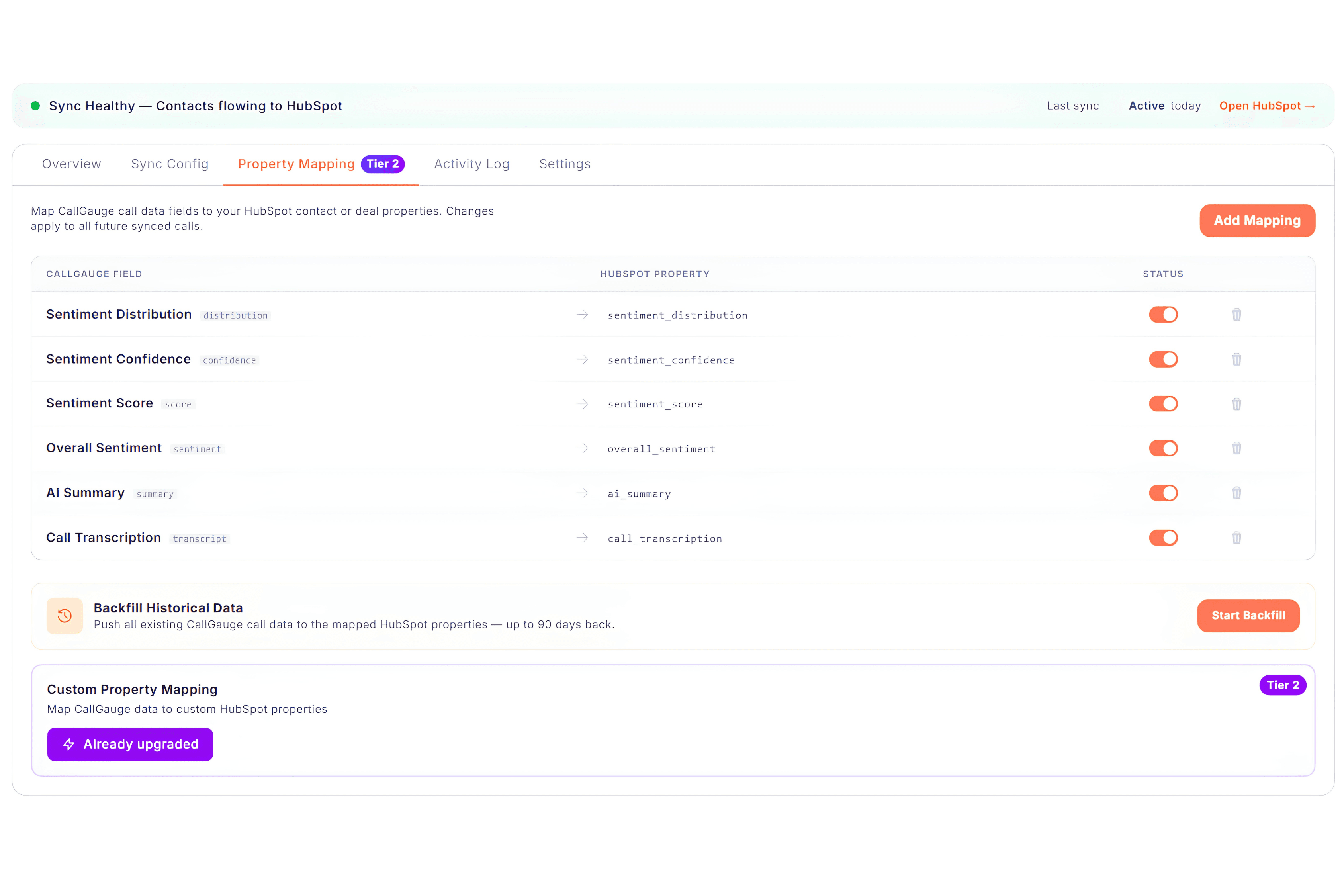
Review Mapping Before Syncing
Confirm that each CallGauge AI field is mapped to the intended HubSpot property before synchronizing production data.
Sync Form Submissions
CallGauge AI can automatically send supported form submissions to HubSpot. Enable CRM Auto-Sync, select HubSpot and choose the destination HubSpot form, then map supported HubSpot fields to the corresponding CallGauge AI form fields.
CRM Auto-Sync
Enable CRM Auto-Sync to automatically send supported form submissions to HubSpot.
Choose HubSpot
Select HubSpot as the CRM destination for your form submissions.
Select a HubSpot Form
Choose the HubSpot form that should receive the synchronized submission data.
Field Mapping
Map supported HubSpot fields to the corresponding CallGauge AI form fields before saving the configuration.
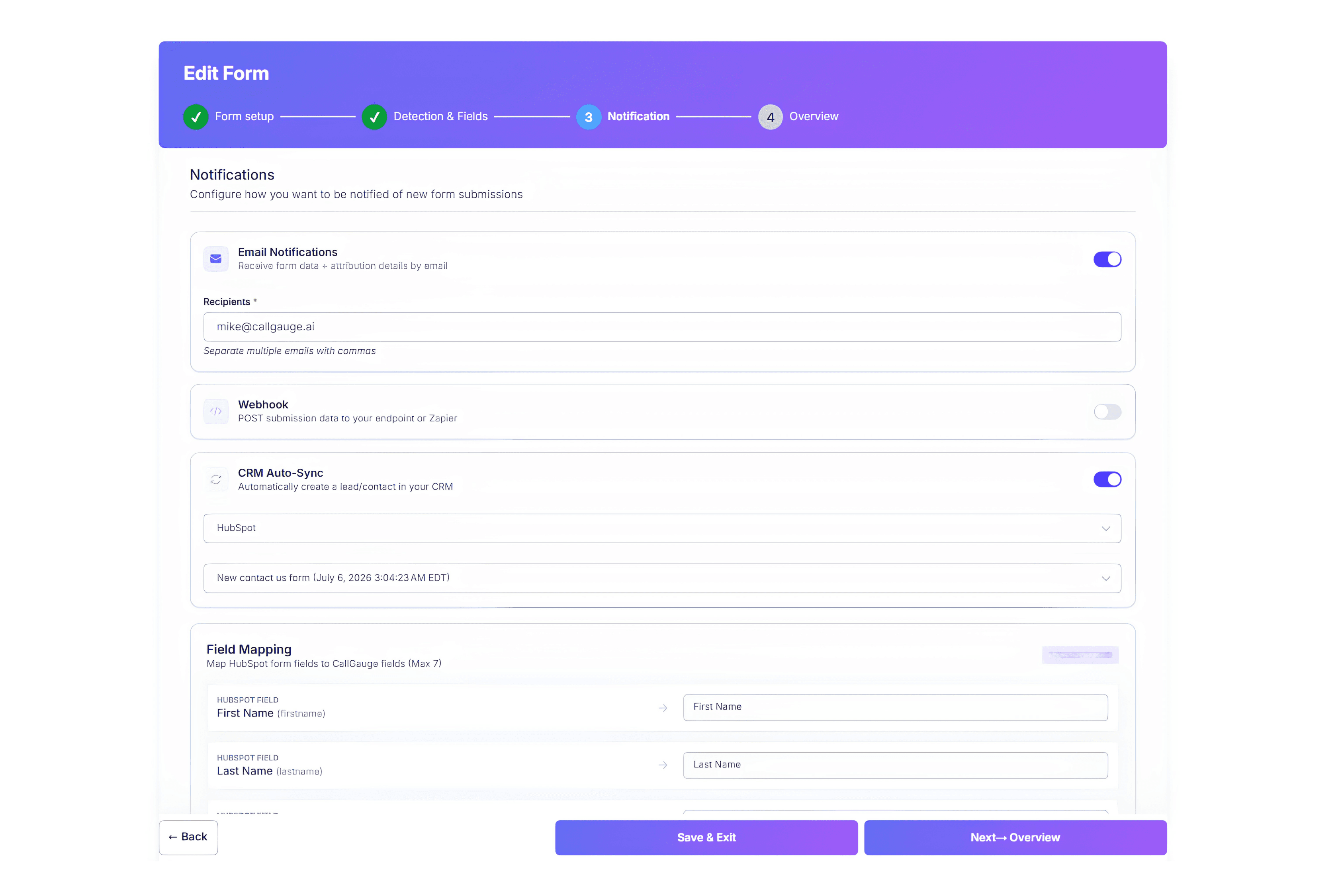
Expected Result
Supported form submission activity can now be included in your connected HubSpot workflow.
Verify Data in HubSpot
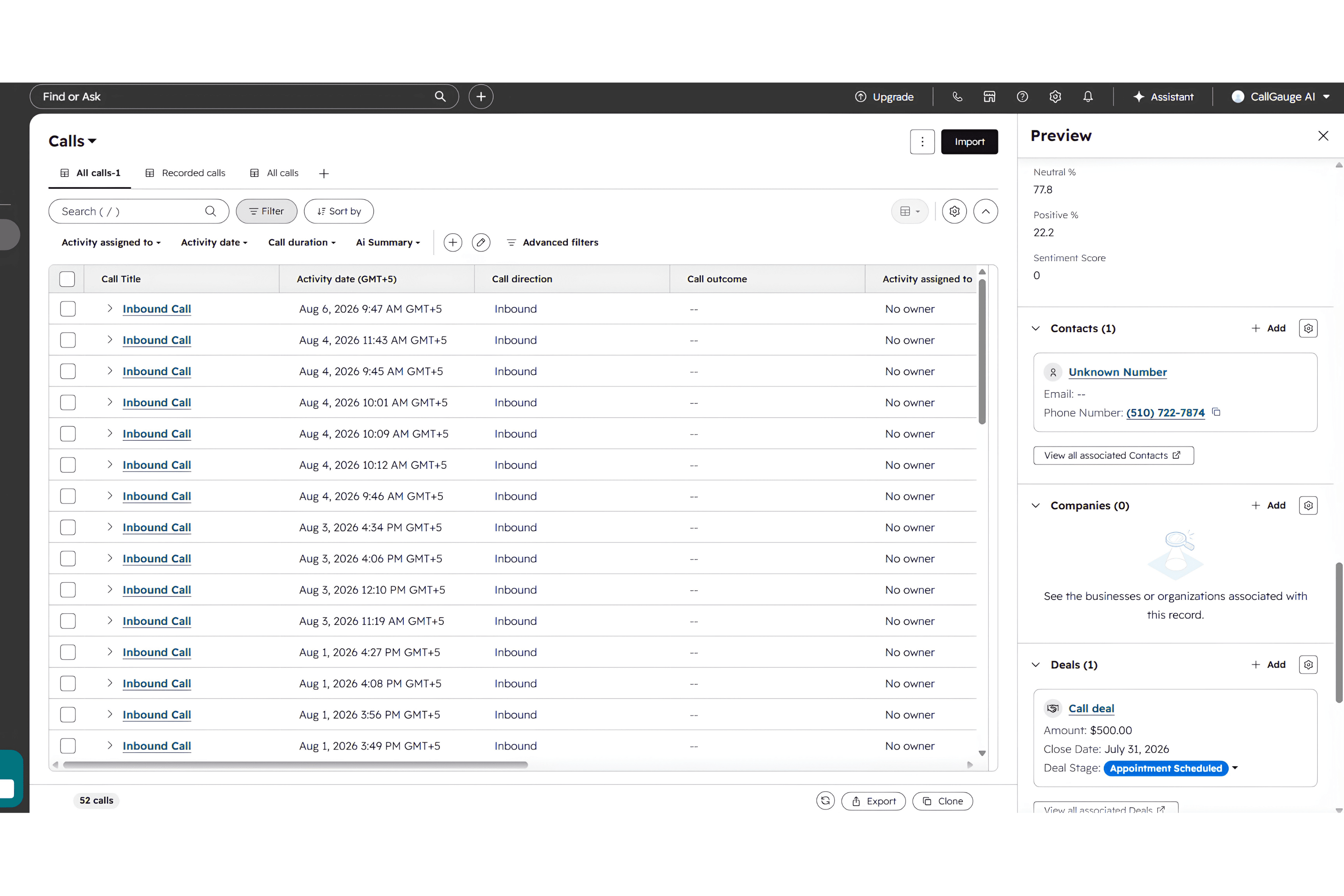
After configuring the integration, verify that supported CallGauge AI data is appearing correctly in your connected HubSpot account.
Generate or select a supported call or customer interaction in CallGauge AI.
Allow the integration to process the synchronization.
Open the connected HubSpot account.
Find the relevant contact and review its synchronized information and call activity.
If deal association is enabled, verify that the relevant supported deal relationship is present.
Review mapped AI and attribution properties where applicable.
Expected Result
The expected CallGauge AI activity and supported data are visible in your HubSpot account.
Monitor Sync Activity
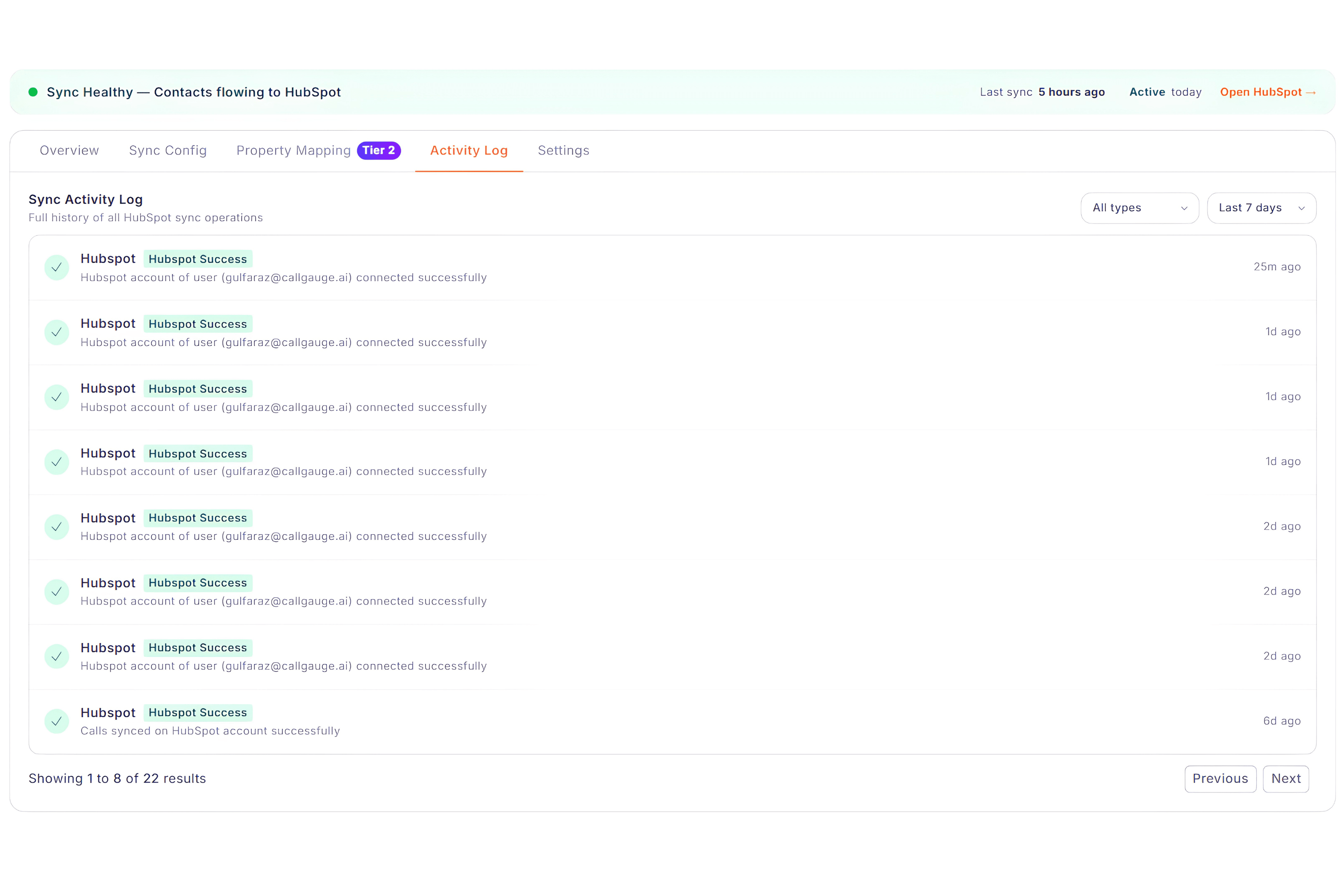
Use the HubSpot integration dashboard in CallGauge AI to monitor connection health and recent synchronization activity.
Investigate Failed Syncs
If an item does not synchronize as expected, review the integration status, configuration, mapping and activity log before reconnecting the account.
Disconnect HubSpot
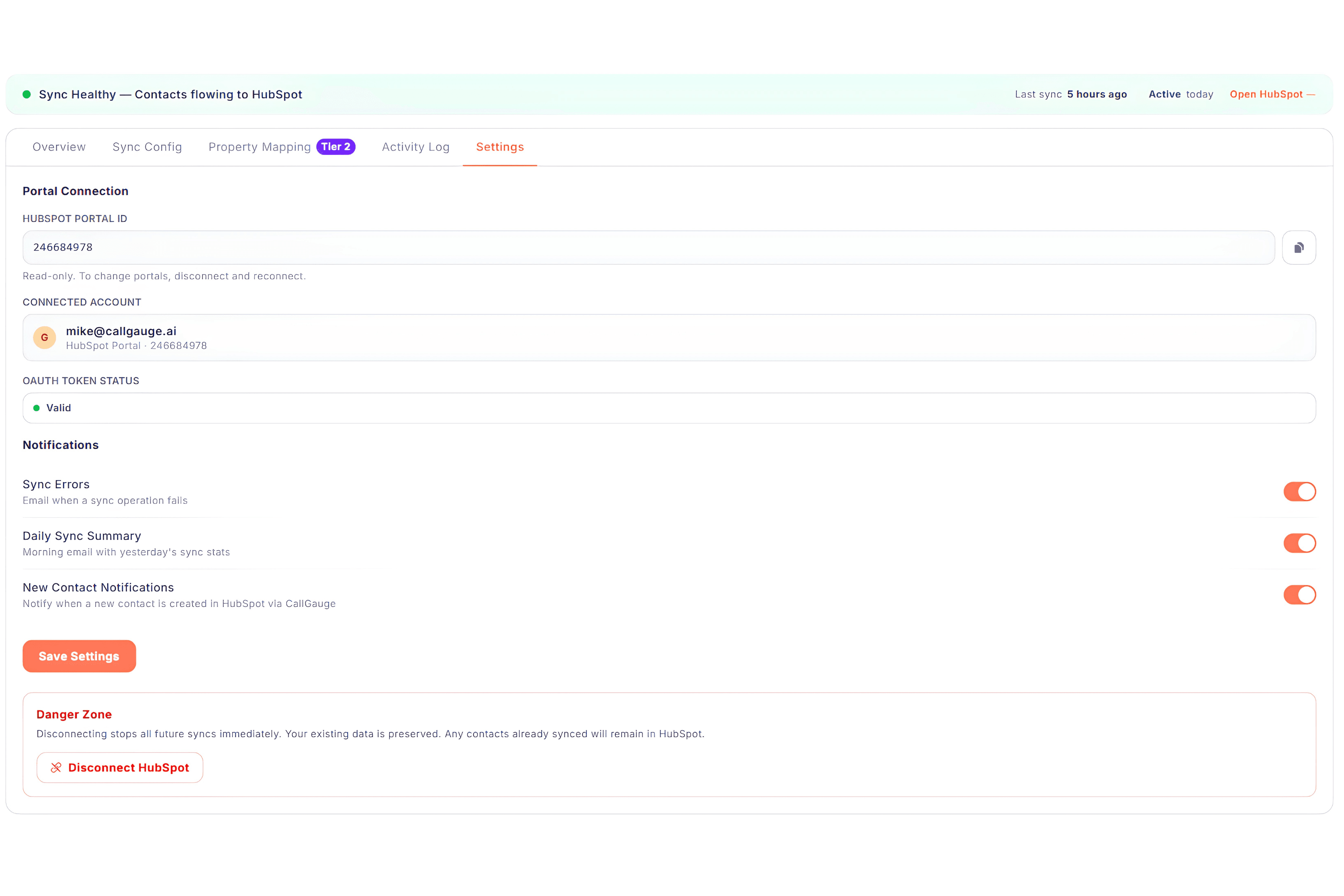
If you no longer want CallGauge AI connected to a HubSpot account, you can disconnect the integration from the HubSpot settings area in CallGauge AI.
Open the HubSpot integration in CallGauge AI.
Open the integration Settings tab.
Review the connected HubSpot portal to make sure you are disconnecting the correct account.
Select the disconnect option and confirm the action.
Removing the App From HubSpot
If you also want to remove the app from your HubSpot account, review your connected apps in HubSpot and remove CallGauge AI from the appropriate account.
Expected Result
CallGauge AI is no longer connected to the selected HubSpot account.
Troubleshooting
HubSpot Will Not Connect
Confirm that you are signing in to the intended HubSpot account and that your HubSpot user can authorize connected apps.
Contact Did Not Sync
Review automatic sync, contact creation settings and the integration activity log.
Call Activity Is Missing
Confirm that activity logging is enabled and that the call has completed processing in CallGauge AI.
AI Data Is Missing
Verify that the relevant AI data has finished processing and that property mappings are configured correctly.
Deal Is Not Associated
Confirm that deal association is enabled and that the supported CRM relationship is available.
Form Submission Is Missing
Review the form synchronization configuration and confirm that the supported submission has been processed.
Still need help?
Contact our support team at support@callgauge.ai if you need help connecting HubSpot, configuring synchronization or resolving an integration issue.
Next Steps
Your HubSpot Integration Is Ready
You now know how to connect HubSpot, configure synchronization, map AI data, sync supported form submissions, verify CRM activity and monitor the integration.
Recommended Next Guides
Need Help With Your HubSpot Integration?
Get help connecting HubSpot, configuring synchronization, mapping data or resolving integration issues.